How to Import Chase CSV Transactions into QuickBooks Desktop (Free CSV to QBO Converter)
You downloaded your Chase activity as a CSV file, but QuickBooks Desktop doesn't import CSV files into the bank register. It imports Web Connect (.qbo) files, or IIF files for older versions. This guide shows how to get the CSV from Chase, what its columns look like, how to turn it into a .qbo file for free in your browser, and how to import and check it.
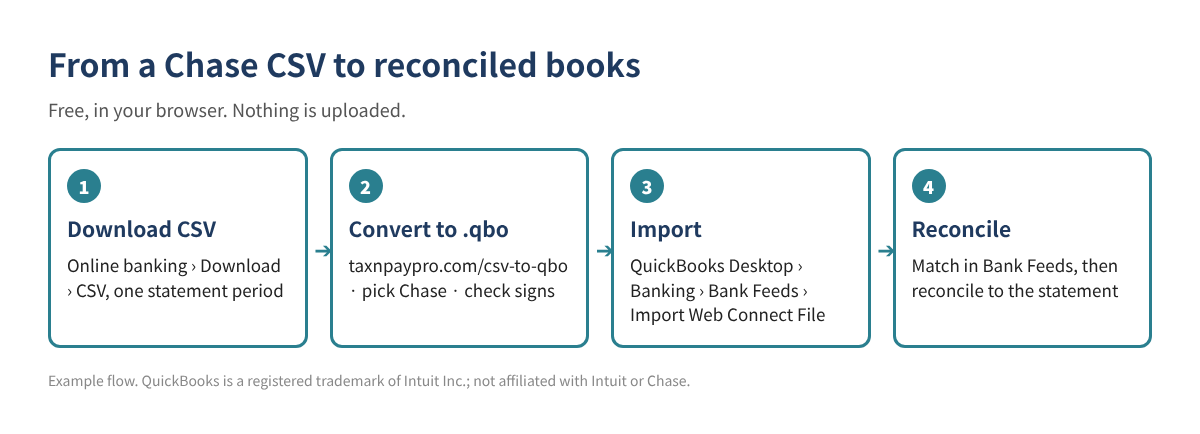
Short version: download CSV from Chase → open the free CSV to QBO converter → pick Chase → check the preview and balance → save the .qbo → in QuickBooks Desktop go to Banking › Bank Feeds › Import Web Connect File.
Step 1. Download the CSV from Chase
Sign in to online banking on a computer (most banks don't offer downloads in the phone app), open the account, and look for Download or a download icon above the transaction list. Choose the date range and pick CSV (sometimes called "Spreadsheet" or "Comma delimited"). Menu names change from time to time; if you can't find it, search the bank's help center for "download transactions".
Step 2. Know your Chase CSV layout
The converter recognizes the Chase layout below and sets the columns and signs for you. It helps to know them so you can spot a wrong file.
| File | Columns (as of 2026) | What to watch |
|---|---|---|
| Checking | Details, Posting Date, Description, Amount, Type, Balance, Check or Slip # | Money out is negative; check numbers come from "Check or Slip #". |
| Credit card | Transaction Date, Post Date, Description, Category, Type, Amount, Memo | Charges are negative, payments positive. The converter uses Post Date. |
Here is what three rows look like after the converter reads them. These are example values, not real transactions:
| Date | Payee | Amount (QuickBooks sign) |
|---|---|---|
| 10/03/2026 | COFFEE SHOP #12 (example) | -8.75 |
| 10/05/2026 | OFFICE SUPPLY STORE (example) | -142.30 |
| 10/07/2026 | CLIENT DEPOSIT (example) | 500.00 |
Step 3. Convert the CSV to a .qbo file
- Open taxnpaypro.com/csv-to-qbo. The file is read in your browser; nothing is uploaded.
- Drop in your CSV and choose Chase in the bank list (or leave it on automatic).
- Check the preview: dates, payees and especially the sign of each amount.
- Enter the statement ending balance if you have it. The converter compares it with the file so you see a difference before you import.
- Enter the last digits of the account number, then save the .qbo file (or .iif if your QuickBooks version no longer supports Web Connect).
Step 4. Import into QuickBooks Desktop
- Back up your company file first.
- Go to Banking › Bank Feeds › Import Web Connect File and open the saved .qbo file.
- The first time, choose Use an existing QuickBooks account and pick the matching bank or card account. Linking it to the wrong account is the most common mistake.
- Review the downloaded transactions in the Bank Feeds Center, add or match them, then reconcile against the statement.
Download checking and credit card activity as separate files. Each file goes to its own account in QuickBooks.
Common mistakes
- Overlapping date ranges. Downloading 10/1–10/31 and then 10/15–11/15 can bring in the same transactions twice. Keep periods back to back, matching statement dates.
- Wrong sign. If deposits show up as payments, the file was read with the wrong layout. Pick Chase in the bank list and check the preview again.
- Wrong account. Each .qbo file carries an account number. If the first import was linked to the wrong account, later files follow it.
- Old QuickBooks version. Web Connect works only on versions Intuit still supports, usually the last three releases. On older versions, use IIF.
- Pending transactions. Leave out rows that haven't posted yet; they change or disappear.
FAQ
Is it safe to put my bank file into an online converter?
This converter runs entirely in your browser. The file isn't uploaded to a server. Still, never share bank passwords, and delete downloaded files you no longer need.
Does Chase offer a QuickBooks file directly?
Some banks and some account types do. If the bank's own QuickBooks or Web Connect file imports without errors, use it. The converter is for when you only have a CSV or the bank file fails.
I get "unable to verify the financial institution". What now?
QuickBooks checks a bank ID inside the .qbo file. In the converter's settings you can change the bank ID (INTU.BID); the default 3000 works for many banks.
I use QuickBooks Online. Do I need this?
Usually not. QuickBooks Online can upload CSV files directly in its Banking screen. This guide is for QuickBooks Desktop.
Checklist
- ☐ CSV downloaded for one statement period
- ☐ Bank set to Chase in the converter
- ☐ Signs checked in the preview
- ☐ Ending balance compared
- ☐ Company file backed up
- ☐ Linked to the correct account on first import
- ☐ Reconciled to the statement
Need a workbook for cleanup after import? The Duplicate Transaction & Bank Reconciliation Difference Finder is a free download (Excel + PDF guide, no sign-up).
This article is general educational information, not tax, legal or accounting advice. Bank download menus and file layouts change; check your own file before importing. Example values are made up.
QuickBooks is a registered trademark of Intuit Inc.; not affiliated with or endorsed by Intuit. Chase is a trademark of its owner; this article is not affiliated with or endorsed by Chase.
Sources: Free Bank CSV to QBO converter